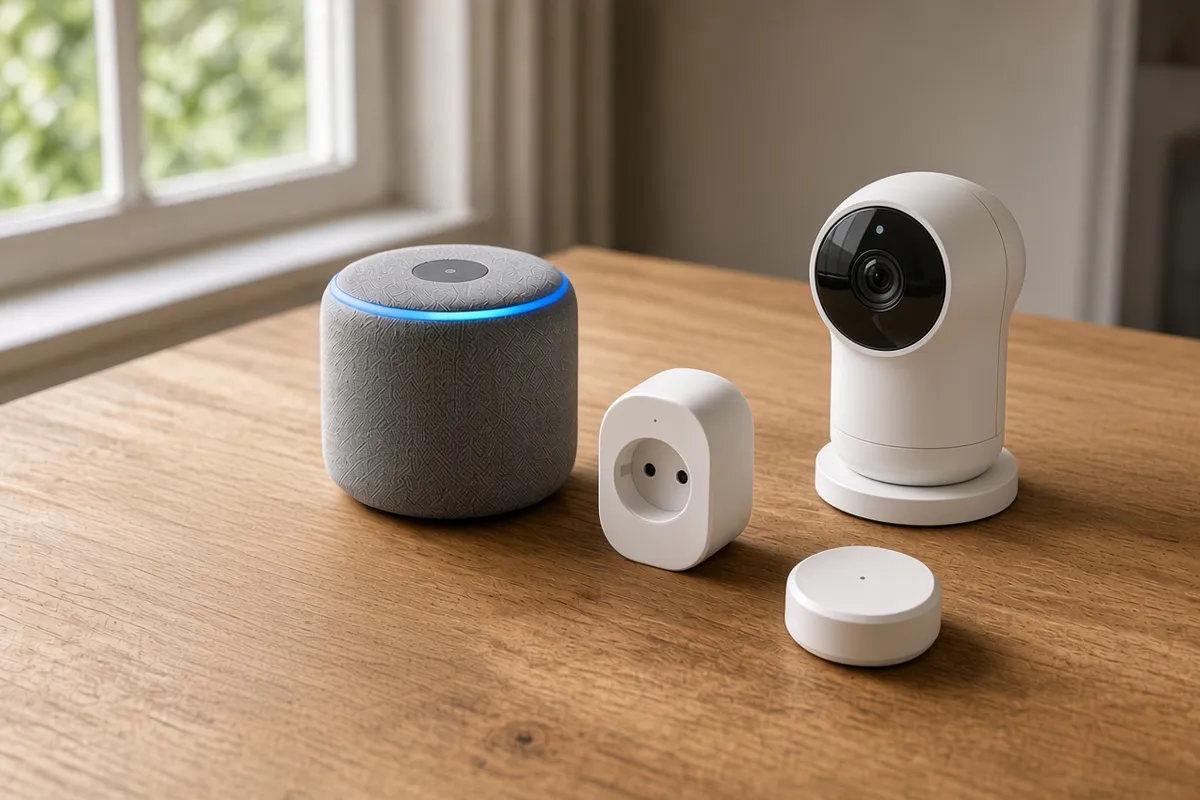
Most people buy smart devices one at a time and end up with a separate app for each. Getting them into a single system takes about five minutes per device once you know the steps.
Below are the steps for a new gadget, the networks that decide whether it will pair at all, and the trick that lets one device answer to two assistants at once.
How Do You Connect a New Gadget?
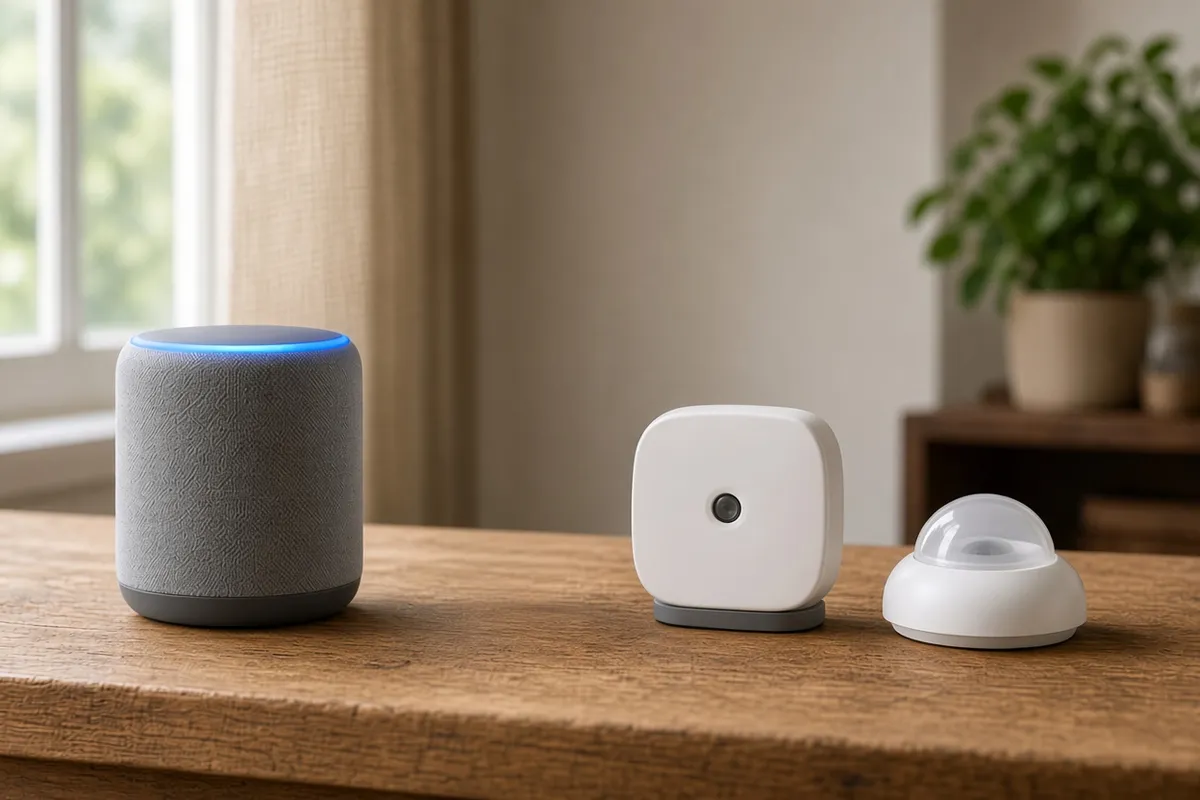
Nearly every device follows the same sequence.
Install your main app first. Use Apple Home, Google Home, Alexa or SmartThings rather than the maker's app, so everything lands in one place.
Power it and start pairing mode. Most do this on first boot, shown by a flashing light. Older units need a button held for a few seconds.
Put your phone on the 2.4GHz network. Many gadgets cannot see a 5GHz band, and this step alone fixes most failed setups.
Tap Add Device and scan the code. Matter products carry a QR code on the device, box or manual, plus an 11-digit number to type if the camera struggles.
Stay close during setup. Pairing uses Bluetooth before the device joins your network, so keep the phone within a few feet.
Name it and assign a room. Voice commands depend on this, so "porch light" beats "light 2".
Photograph that code before you install anything. You will need it if you ever reset the device, and on a ceiling fitting it ends up facing the wrong way.
If it still will not appear, it is almost always one of three things: your phone is on the wrong Wi-Fi band, the gadget needs a hub you do not own, or the app is out of date. Update the app before resetting the hardware.
Which Connection Does Your Gadget Use?
Connection | Typical devices | What it needs |
|---|---|---|
Wi-Fi | Cameras, speakers, displays | Nothing extra, uses more power |
Thread | Sensors, locks, bulbs | A Thread border router in the home |
Zigbee or Z-Wave | Older sensors and bulbs | A hub or bridge to translate |
Bluetooth | Wearables, plus setup | A phone nearby |
Thread is where people get stuck. It is a low-power mesh, so battery devices last far longer, but it needs a border router to reach the internet. Many speakers and displays include one, which is why a Thread sensor can refuse to pair until you own the right hub.
What Is Matter, and Why Does It Help?
Matter is a shared standard run by the Connectivity Standards Alliance, founded by Amazon, Apple, Google and Samsung SmartThings. A device carrying its logo should work with all of them, so you stop checking compatibility brand by brand.
Version 1.6 arrived in June 2026 with NFC setup for products you configure before installing, such as in-wall switches. Matter runs over Wi-Fi, Ethernet and Thread only, so anything else needs a bridge. It also allows local control, the same benefit behind edge AI hardware.
Can One Device Answer to Two Assistants?
Yes, through multi-admin. One lock can sit in Apple Home for you and Alexa for everyone else. In the app that already controls it, open its settings and generate a new pairing code, then enter that code in the second app.
Apple Home: hold the accessory, open Accessory Settings, turn on pairing mode.
Google Home: hold the accessory, open Settings, then Linked Matter apps and services.
Alexa: tap the accessory, open Settings, then Other Assistants and Apps.
Google's codes expire in about 15 minutes, and your automations do not transfer, because each platform treats the device as new. There is also a ceiling nobody prints on the box. Certified devices must support at least five of these connections, called fabrics, and Apple Home uses two because its iCloud sync needs a second. That leaves roughly three slots for everyone else.
Conclusion:
Connecting AI gadgets is mostly four habits: pair into one main app, keep your phone on 2.4GHz during setup, own a border router before buying Thread devices, and use multi-admin rather than settling for a single assistant.
Save every code, and expect to rebuild automations in each ecosystem you add. Read Are AI Gadgets Worth It? before expanding, and check the AI gadget privacy guide for what each platform stores.
(FAQs):
Q1: What if there is no QR code on the device?
A: It is probably not a Matter product. Set it up in the maker's own app first, then link that account to your assistant.
Q2: What happens when I change my router or Wi-Fi password?
A: Wi-Fi gadgets usually need pairing again. Thread devices talk to the border router, so they often survive the change.
Q3: If I delete a device from one app, does it vanish from the others?
A: No. Each platform holds its own connection, so removing it from one leaves the rest working normally.
Q4: Do I still need the maker's app after setup?
A: Often yes, for firmware updates. Keep it installed and open it every few months, even if you control the device elsewhere.
Sources: Connectivity Standards Alliance Matter specification releases, including Matter 1.6 (2026); published technical coverage of Matter fabrics and multi-admin pairing.