
Every flagship phone sold since 2025 ships with AI features that most owners never find. They are buried in edit menus, hidden behind long-press gestures, or mentioned once in the setup wizard and never surfaced again. The result is that people spend $800-1,299 on a device that can translate a phone call in real time, summarize their entire inbox, or remove people from a photo - and use none of it.
What follows are the most capable and least-discovered AI features across iPhone 17, Samsung Galaxy S26, and Google Pixel 10 as of April 2026, organized by what they actually do rather than what platform they live on. Each entry includes where to find it and what it is actually useful for.
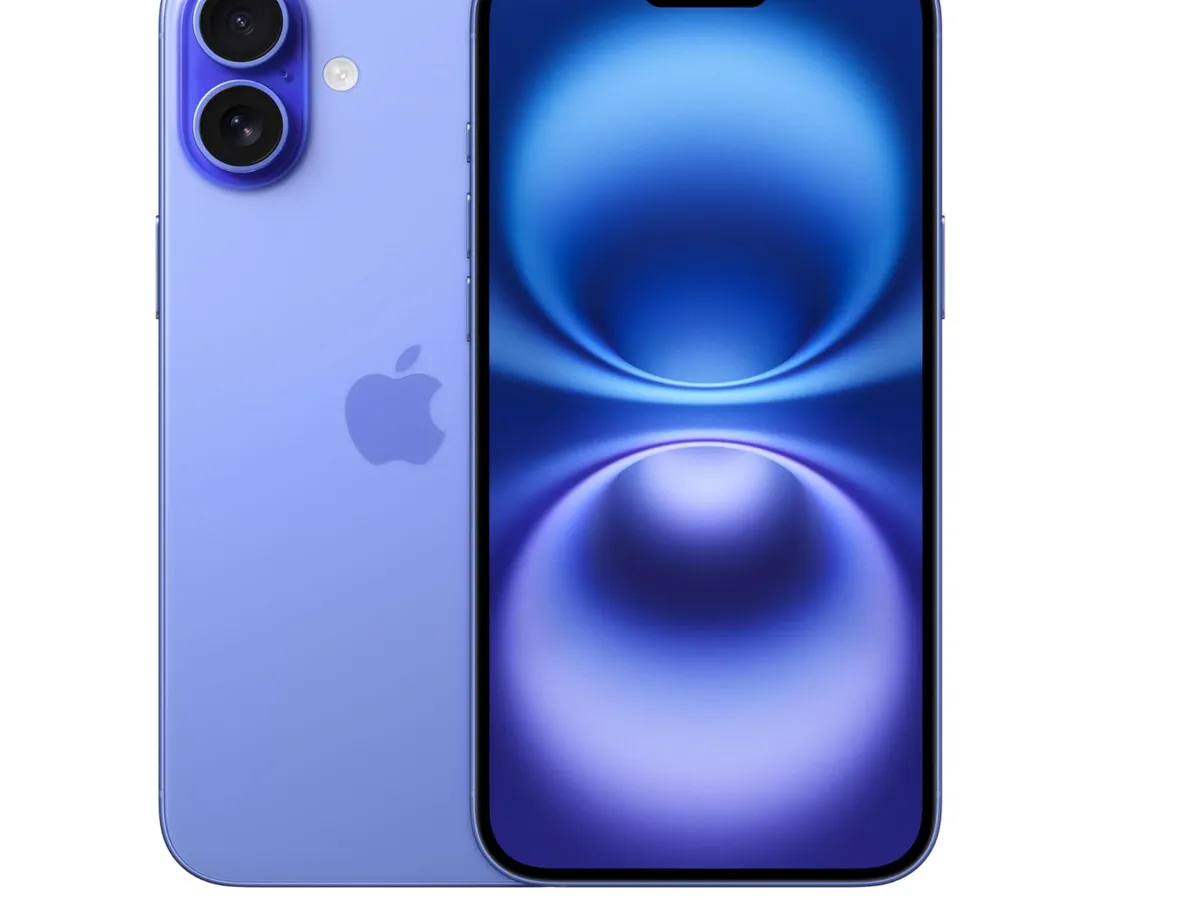

iPhone 17: Hidden Apple Intelligence Features
Visual Intelligence (Available on All iPhone 17 Models)
Visual Intelligence is one of the most powerful features Apple has shipped in years, and most iPhone 17 owners have never activated it. On iPhone 17 Pro and Pro Max, press and hold the Camera Control button. On all other iPhone 17 models, access it through Control Center or through Siri. The full iPhone 17 lineup - including iPhone 17e - supports Visual Intelligence, a significant expansion from its prior limitation to iPhone 17 Pro models only.
Point your camera at anything and Apple Intelligence identifies it. What actually surprises people:
Point at a restaurant and see its hours, Google Maps rating, and price range without opening any app
Point at a plant and get its scientific name, sunlight requirements, and watering schedule
Point at a business card and add the contact details to your address book in one tap
Point at text in any language and get a real-time translation overlaid on the image
Point at a math problem handwritten on paper and see a step-by-step solution
Point at a dog breed you do not recognize and get the breed identification and temperament notes
The feature draws on Apple Intelligence locally for image recognition and uses Gemini or ChatGPT for queries requiring broader knowledge. Speed is typically 1-2 seconds - fast enough to replace opening Google and typing a search.
Live Voicemail and Call Recording with Transcription
iPhone's Live Voicemail launched in iOS 17 and the majority of iPhone users still do not know it exists. When someone calls and you do not answer, iOS transcribes the voicemail in real time as it is being left, displayed on your screen. You can read what they are saying as they say it and pick up mid-message if the content is worth it.
Call recording with automatic transcription arrived in iOS 26 and remains one of the least-discovered features on iPhone 17. Start recording during any call through the Phone app - both parties are notified - and the call is transcribed and saved in Notes automatically. The transcript is searchable. Ask Siri to find the call where someone gave you an address or confirmed a deadline and it surfaces the exact passage.
To enable: Settings > Phone > Live Voicemail (toggle on). Call recording appears as a button in the active call UI in supported regions.
Gemini-Powered Siri for Real-Time Knowledge
iPhone 17 users have a Siri capability that no prior iPhone offered: optional Gemini integration for queries requiring current knowledge or complex reasoning. When Siri cannot answer a question locally - current news, real-time sports scores, complex factual research - it offers to forward the query to Gemini. The handoff is seamless and requires no app switching.
Most people discover this by accident when Siri surfaces a "Get answer from Gemini?" prompt. The better approach: invoke Siri and explicitly say "Ask Gemini..." when you know you want current-events information. Personal context questions (email, calendar, messages) still run entirely on-device; Gemini handles the knowledge queries. Settings > Apple Intelligence and Siri > Extensions controls which external AI models Siri can invoke.
Clean Up in Photos: The Real Capability Ceiling
Clean Up is Apple's object removal tool in Photos, available on all iPhone 17 models. Tap Edit on any photo, then the Clean Up brush icon in the bottom toolbar. Tap or circle any object to remove it. Most people discover this feature and use it once for a simple sky photo, then forget about it. The actual capability ceiling is higher:
Remove a person standing in the background of a travel photo (works well when they are not too large in the frame)
Remove utility poles and power lines from landscape photos
Remove a piece of litter, a parked car, or signage from an otherwise clean street photo
Remove blemishes or objects from food photography
Remove watermarks or date stamps from older photos
On iPhone 17 Pro with the A19 Pro chip, Clean Up processes faster than on prior models and handles more complex backgrounds with fewer artifacts. The improvement is meaningful for professional photography use. Results are best when the removed object covers less than 20-25% of the frame and the revealed background is relatively uniform.
Siri's On-Screen Context Awareness
The least-discovered upgrade in iOS 26 Siri - and now available on every iPhone 17 model - is the ability to reference what is currently on your screen. Invoke Siri while looking at any content and it knows the context without you describing it.
Reading an article with an unfamiliar term - say "What does [term] mean?" and Siri understands you mean the term in the text on screen
Looking at a photo in Messages - say "Save this to my photo library" and Siri does it
Viewing an address in Maps - say "Add this to my contacts" and Siri populates a new contact with the business name and address already filled in
Reading an email with a meeting time - say "Add this to my calendar" and Siri creates the event from the email's content
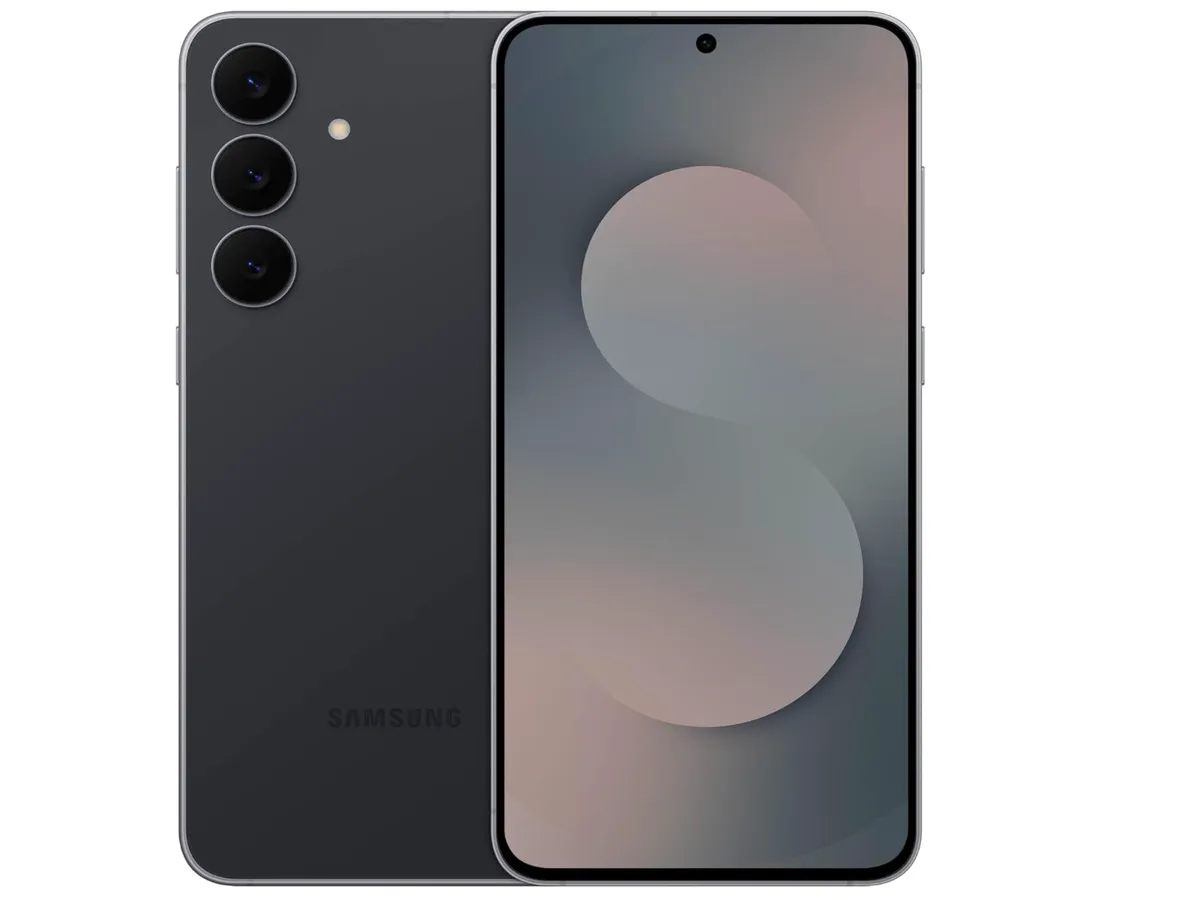
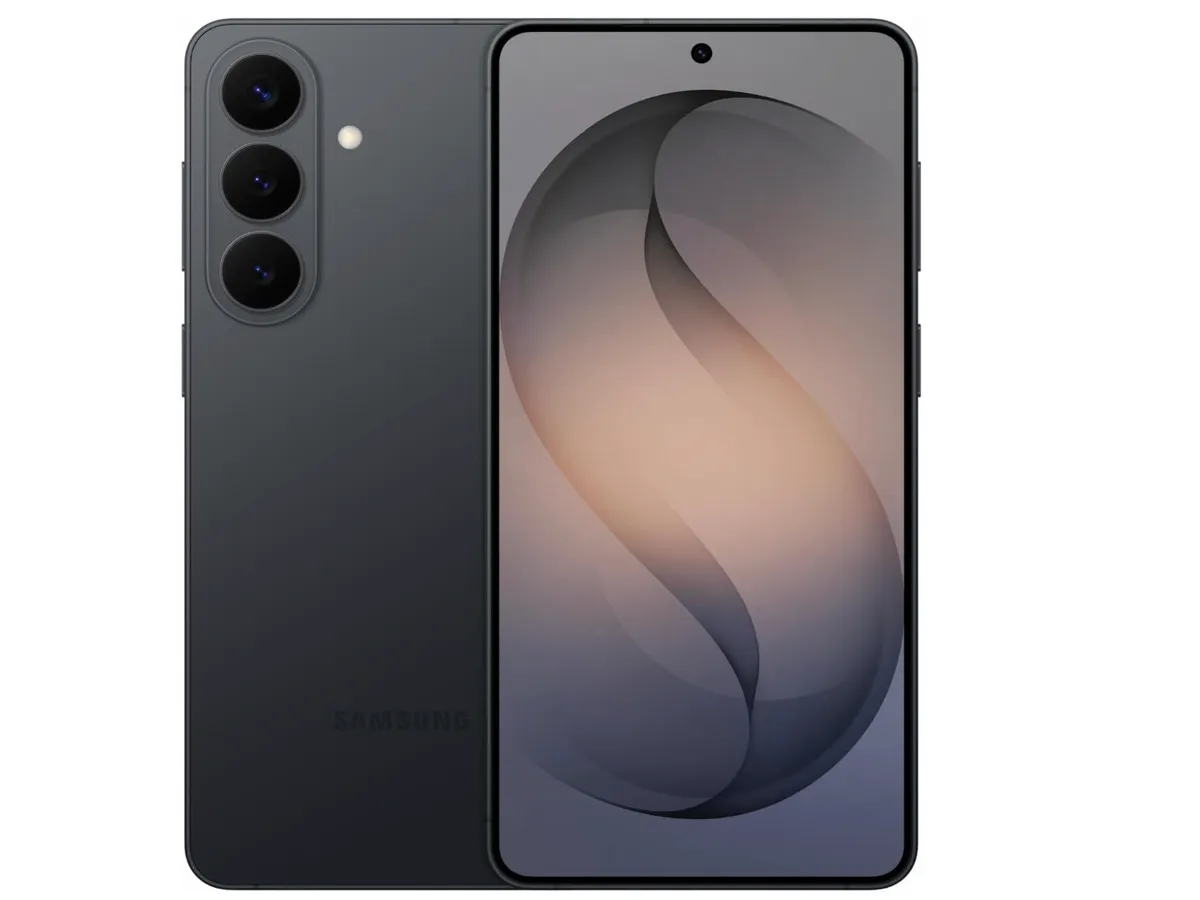
Samsung Galaxy S26: Underused Galaxy AI Features
Circle to Search in Videos (Not Just Photos)
Circle to Search - long-press the navigation bar on Galaxy S26, then circle anything on screen - is known primarily as a photo and webpage feature. Fewer people know it works on paused video frames. Pause any YouTube video, long-press to activate Circle to Search, and circle any product, place, or person visible in the frame. Google Search opens with results for what you circled.
Use cases that are genuinely useful:
A cooking video shows a pan brand you want - circle it for shopping results
A travel documentary shows a landmark - circle it for the name and location
A fashion video shows shoes you want - circle them for purchase options
A product review shows an accessory in the background - circle it for specs
On Galaxy S26, Circle to Search processes faster than on Galaxy S26 due to the Snapdragon 8 Elite Gen 5's Hexagon NPU improvements - the visual recognition step that previously added a brief delay is now near-instant.
Generative Edit: More Than Just Erasing
Samsung's Generative Edit in the Gallery app (Edit > Generative Edit) on Galaxy S26 goes beyond simple object removal. You can:
Move objects within a photo - select a person or object, drag it to a new position in the frame, and AI fills in the original location and adjusts shadows and perspective
Resize objects - make a background element larger or smaller
Extend the photo canvas - stretch the edges of a photo to reveal more background that was not in the original frame (AI generates the missing content contextually)
Rotate a photo straight and have AI fill in the triangular gaps at the corners
Canvas extension works well for landscape and architecture photos. Moving people within a photo produces convincing results approximately 65% of the time on Galaxy S26 - an improvement from Galaxy S26's 60% success rate attributable to the upgraded Hexagon NPU enabling a larger on-device generation model.
Live Translate for Phone Calls: On-Device, No Cloud
Galaxy S26 includes Live Translate for phone calls - real-time voice translation during live calls in 20+ languages. Both speakers hear the conversation in their own language with a brief delay. Uniquely, Live Translate on Galaxy S26 processes entirely on-device using the Snapdragon 8 Elite Gen 5's Hexagon NPU. The call content is never transmitted to any server - a significant privacy advantage for international business users and travelers who need translation without cloud dependency.
Galaxy Buds 4 Pro integrate with Live Translate during calls: the translated audio plays through the earbuds, keeping the phone-to-ear experience natural rather than requiring you to look at the screen for the translated text. This earbud integration is the recommended way to use Live Translate for comfortable extended conversations.
To activate: During any active call, tap the three-dot menu > Live Translate > Select your language and the other speaker's language. The translation begins immediately. Supported languages include Spanish, French, German, Italian, Portuguese, Japanese, Korean, Mandarin Chinese, Arabic, Hindi, and others.
Chat Assist for Tone Changes
In Samsung's Messages app and several third-party messaging apps, the Galaxy AI keyboard icon offers Chat Assist. Select any message you have written, tap Chat Assist, and choose a tone: Professional, Casual, Polite, Social, or Custom. The AI rewrites your message in that register.
The practically useful application is Professional mode on casual messages. Draft "can we push this to thursday" and Professional mode produces "Would it be possible to reschedule our meeting to Thursday? Please let me know if that works for you." It takes 3 seconds and removes the cognitive load of tone-switching when moving between personal and professional conversations.
Transcript Assist in Voice Recorder
Samsung's Voice Recorder app on Galaxy S26 includes AI transcription with speaker separation, summary generation, and action item extraction. Record a meeting, get a transcript that labels each speaker's contributions, then tap Summary for a structured overview of what was discussed and what decisions were made.
Speaker separation works for 2-4 speakers in relatively clean audio conditions. The AI summary quality is strong for structured meetings with clear agenda items. Action item extraction - identifying commitments made during the meeting - is the most underused function: it surfaces who committed to what by when without requiring you to re-read the full transcript.
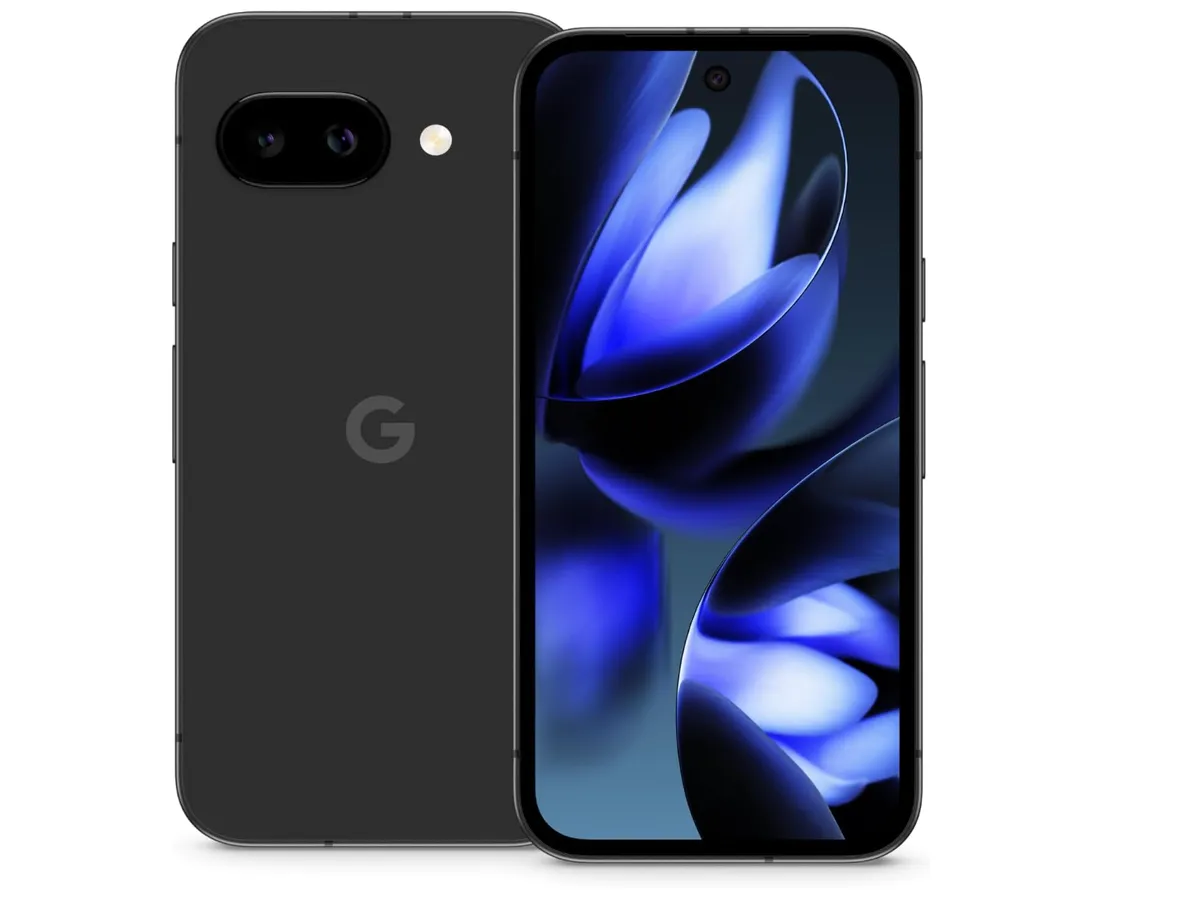
Google Pixel 10: AI Features Most Owners Ignore
Call Screen: Let Gemini Screen Your Calls
Google Pixel 10's Call Screen feature has existed since Pixel 3 but remains largely unknown even among Pixel owners. When an unknown number calls, tap Screen Call instead of Answer or Decline. Gemini asks the caller who they are and why they are calling, then displays a real-time transcript on your screen. You read the reason before deciding to pick up, and the caller has no idea they are talking to an AI screener.
On Pixel 10, Call Screen integrates more deeply with Gemini than prior models - it can now make context-aware screening decisions (flagging calls that mention your name but you don't recognize the number as likely legitimate), not just transcribe. Spam calls are automatically declined without ringing when Google identifies the number as likely spam.
Hold for Me
Hold for Me is a Pixel-exclusive feature that most owners have never used. When you are placed on hold by a business, tap Hold for Me in the call UI. Gemini takes over, monitors the hold music, and notifies you with a notification and haptic buzz when a human picks up. You come back to the call only when it matters.
This feature is not available on iPhone 17 or Galaxy S26. It works for businesses using standard hold music patterns. It is correct approximately 80-90% of the time - occasionally a hold system uses non-standard audio that triggers a false positive - but it eliminates the need to hold a phone to your ear for 20 minutes. The time savings on a single long hold pays back any inconvenience from the occasional false positive.
Recorder App: AI Summaries, Search Across All Recordings
Google's Recorder app on Pixel 10 transcribes audio in real time without sending anything to the cloud (on-device processing via Tensor G5's TPU). After recording, the AI generates a summary and lets you search for specific words or topics within the transcript.
The search function is the underused power feature: you can search across all your recordings for a specific name, topic, or phrase. Every interview, meeting, lecture, and conversation you record becomes a searchable knowledge base. The on-device processing means recordings are private by default. On Pixel 10, the Tensor G5 TPU handles transcription faster than Tensor G5 - long recordings that previously required processing time now transcribe nearly in real time.
Magic Eraser in Video (Available on Pixel 10)
Most Pixel users know about Magic Eraser for photos. Fewer know it works on video as of the Pixel 9 series, and Pixel 10 improves the capability further. In Google Photos, open any video, tap Edit > Magic Eraser, and Google's AI identifies and offers to remove distracting objects across the entire video clip. The tracking follows the object through video frames automatically.
Best use cases on Pixel 10: removing a persistent logo, watermark, or small background object that appears throughout a recording. Large or foreground objects still produce visible artifacts. Background objects in the bottom 20% of the frame that are not near the subject produce the cleanest results.
Cross-Platform: Features Available on All Three
Live Captions with Translation
iPhone 17, Galaxy S26, and Pixel 10 all offer Live Captions - real-time transcription of any audio playing on your phone, displayed as an overlay. This includes videos, podcasts, calls, voice memos, and apps. On Pixel 10 and Galaxy S26, Live Captions also offers real-time translation - audio in a foreign language is transcribed and translated simultaneously.
To enable: Android (Pixel 10) - volume panel shortcut or Accessibility > Live Captions. Galaxy S26 - Accessibility > Hearing enhancements. iPhone 17 - Control Center > Accessibility shortcuts > Live Captions.
Real-Time Translation with Earbuds
AirPods Pro 3 with iPhone 17, Pixel Buds Pro 2 with Pixel 10, and Galaxy Buds 4 Pro with Galaxy S26 all support real-time conversation translation delivered directly to your ears. One person speaks in their language; you hear the translation through your earbuds within 1-2 seconds.
On iPhone 17: Open the Translate app, choose conversation mode, select both languages, and start talking. Translations play through AirPods Pro 3. On Pixel 10: Google Translate's conversation mode works with Pixel Buds Pro 2 for the same experience. On Galaxy S26: Live Translate in the Phone app delivers translations through Galaxy Buds 4 Pro during calls with full on-device processing - the most private implementation of the three since no audio leaves the device.
AI Photo Search in Natural Language
All three platforms support natural language search within your photo library.
"Photos with dogs from last summer" - searches by content, date, and season
"Screenshots of receipts" - identifies document type within images
"Selfies at restaurants" - combines face detection and scene classification
"Videos from my daughter's birthday" - cross-references faces with event context
On iPhone 17: The search bar in Photos accepts natural language via Apple Intelligence running on the A19 Neural Engine. On Pixel 10: Google Photos search is powered by Gemini on Tensor G5 and remains the most accurate of the three platforms. On Galaxy S26: Gallery search supports natural language via One UI 8.5's Galaxy AI integration.
Where to Find These Features: Quick Reference
Feature | iPhone 17 | Samsung Galaxy S26 | Google Pixel 10 |
|---|---|---|---|
Real-time object identification | Camera Control (Visual Intelligence) or Control Center | Bixby Vision in Camera app | Google Lens in Camera app |
Call screening / voicemail transcription | Settings > Phone > Live Voicemail | Phone app > Call assist settings | Phone app > Screen Call (during incoming call) |
Hold for me | Not available | Not available | Active call UI > Hold for Me |
Object removal in photos | Photos > Edit > Clean Up | Gallery > Edit > Generative Edit | Google Photos > Edit > Magic Eraser |
Video object removal | Not yet available | Gallery > Edit > Generative Edit (limited) | Google Photos > Edit > Magic Eraser (video) |
Live call translation | Via Translate app + AirPods Pro 3 | Phone app > Live Translate (on-device, no cloud) | Google Translate conversation mode + Pixel Buds Pro 2 |
AI meeting transcription + summary | Notes app (record + transcribe) | Voice Recorder > Transcript Assist + action items | Recorder app (auto-transcribes, on-device) |
Circle to Search | Not available | Long-press nav bar or home button | Long-press nav bar or home button |
Writing tone adjustment | Select text > Writing Tools (Professional/Friendly/Concise) | Keyboard > Galaxy AI star icon > Chat Assist | Gmail / Messages (Gemini suggestions) |
External AI integration via assistant | Siri > Ask Gemini or Ask ChatGPT | Gemini (default assistant) | Gemini (native, no extension needed) |
Live Captions | Control Center > Accessibility shortcuts | Accessibility > Hearing enhancements | Volume panel > Live Caption shortcut |
Sources
Frequently Asked Questions
Do these features require an internet connection?
It depends on the feature. On-device features work offline: Live Voicemail transcription on iPhone 17, Recorder transcription on Pixel 10, Galaxy S26 Live Translate (on-device via Hexagon NPU), noise cancellation, face unlock. Features requiring cloud inference - Visual Intelligence restaurant lookup, Circle to Search, Generative Edit canvas extension - need an internet connection. Siri's Gemini integration requires connectivity when invoking Gemini, but Siri's on-device personal context queries work offline.
Will using these AI features drain my battery?
Minimally. On-device AI features run on dedicated NPU chips designed for power efficiency. A19 Pro and Snapdragon 8 Elite Gen 5 both improve per-inference efficiency over prior generations. On Pixel 10, the Tensor G5's larger TPU handles more Gemini Nano inference without a proportional battery penalty. Continuous features like Live Captions during a long video may add 2-3% per hour. Nothing in this list should meaningfully shorten a full day's battery life.
Are photos sent to the cloud when I use AI editing?
Apple processes Clean Up entirely on-device on iPhone 17 - no cloud upload. Google Photos processes Magic Eraser for complex removals via cloud servers. Samsung's Generative Edit uses Samsung cloud servers for canvas extension and object moves. For maximum photo privacy, iPhone 17's Clean Up is the only fully on-device implementation of the three. Check Google Photos Settings > Privacy and Samsung Gallery AI settings if cloud processing concerns you.
Which phone has the best AI features overall in 2026?
It depends on what you value. Pixel 10 leads on camera AI and conversational intelligence - Gemini on Tensor G5 is the most capable AI assistant available natively in a phone, and Magic Eraser across photos and video is the best-in-class implementation. Galaxy S26 leads on on-device multilingual features - Live Translate's full on-device processing for calls is unavailable anywhere else, and Transcript Assist with speaker separation is the best voice meeting tool in mobile. iPhone 17 leads on privacy-preserving AI - most Apple Intelligence processing stays on-device, Gemini is invoked only with explicit consent, and Apple's data practices are the most transparent in the industry.
Do I need the latest flagship to use these features?
For the features in this guide: Galaxy AI requires Samsung Galaxy S24 or later; most features described here are Galaxy S26 optimized. Apple Intelligence requires iPhone 16 Pro or later - the entire iPhone 17 lineup is supported including iPhone 17e. Google's AI camera features work from Pixel 7 onward; Hold for Me works from Pixel 3; the full Gemini + Tensor G5 capabilities described here require Pixel 10. You do not need a $1,200 flagship for most of this functionality, but you do need a device from 2023 or later.