How to Set Up a Smart Home with Matter: Step-by-Step Guide
Matter is the smart home standard that was supposed to end the compatibility nightmare. Before it existed, buying a smart bulb meant gambling that it would work with your voice assistant, that the app would still be supported in two years, and that adding a second brand wouldn't require a second hub. Matter changes that calculus. A single device, certified once, works across Apple HomeKit, Google Home, Amazon Alexa, and Samsung SmartThings simultaneously without bridges or workarounds.
Matter 1.5, the standard's current version, covers more than 2,000 certified devices across 41 device categories. That number includes a significant expansion from early Matter: cameras with live streaming, energy management systems, smart blinds, garage doors, and soil sensors are all part of the certified ecosystem now. IKEA alone shipped more than 20 products in the Matter-over-Thread category in 2025. The protocol has crossed the threshold from promising to practical.
This guide walks through a complete Matter smart home setup from zero: what hardware you need, how to choose devices, how Thread works and why it matters, the step-by-step setup process, and how to troubleshoot the most common issues that come up during a first installation.
What Matter Actually Is (And What It Is Not)
Matter is a local-first communication protocol developed by the Connectivity Standards Alliance (CSA), backed by Apple, Google, Amazon, Samsung, and more than 500 other companies. The key word is local: Matter devices communicate directly with your hub over your home network rather than routing every command through a manufacturer's cloud server. This makes responses faster, makes your devices work during internet outages, and eliminates the "this product requires an account" friction that defined the previous generation of smart home products.
What Matter is not: a guarantee that every device works with every feature on every platform. Matter defines a baseline set of capabilities that every certified device must support. But platform-specific features (Apple's adaptive lighting, Google's Nest routines, Amazon's Alexa Guard) still live in the platform layer above Matter and may only work on specific ecosystems. When you see "Works with Matter" on packaging, it means the device will connect and work with basic controls on any Matter-compatible platform. The advanced features may be platform-specific.
The Hardware You Need Before You Start
Matter requires a Matter controller and, for Thread devices, a Thread Border Router. In most cases these are the same device or are already in your home.
Matter Controllers by Platform
| Platform | Controller Hardware | Also Acts as Thread Border Router? |
|---|---|---|
| Apple HomeKit | Apple TV 4K (3rd gen or later), HomePod (2nd gen), HomePod mini | Yes (all three) |
| Google Home | Nest Hub (2nd gen), Nest Hub Max, Nest WiFi Pro | Yes (all three) |
| Amazon Alexa | Echo (4th gen or later), Echo Show 10/15/21 | Echo 4th gen and Echo Show 10/15/21 only |
| Samsung SmartThings | SmartThings Hub v3, Aeotec Smart Home Hub, SmartThings Station | SmartThings Station only |
If you're starting from scratch, an Apple TV 4K or HomePod mini covers both Matter controller and Thread Border Router duties in one $99-$129 device. If you already have a 4th-generation Echo or a Nest Hub, you likely have everything you need already.
One important note for Apple HomeKit users: Apple ended support for the legacy HomeKit accessory architecture in February 2026. Devices using the old HomeKit protocol require a Home Hub (Apple TV 4K, HomePod) to function. New Matter purchases are not affected by this, but if you have older HomeKit accessories you planned to keep, verify they are still functional in your current setup before expanding.
Wi-Fi Requirements
Matter over Wi-Fi devices require a 2.4GHz or 5GHz Wi-Fi network. Most modern routers handle this automatically. Requirements:
- WPA2 or WPA3 security (WEP is not supported)
- If you use a separate IoT network or VLAN, ensure your Matter controller is on the same network segment as the devices, or has mDNS/DNS-SD forwarding configured across VLANs
- Routers with "AP Isolation" or "client isolation" enabled will prevent Matter devices from communicating - disable this for any network segment where Matter devices will live
- Wi-Fi 6 (802.11ax) routers handle the higher device count of a full smart home more reliably than Wi-Fi 5, but are not required
Understanding Thread: Why It Matters for Your Setup
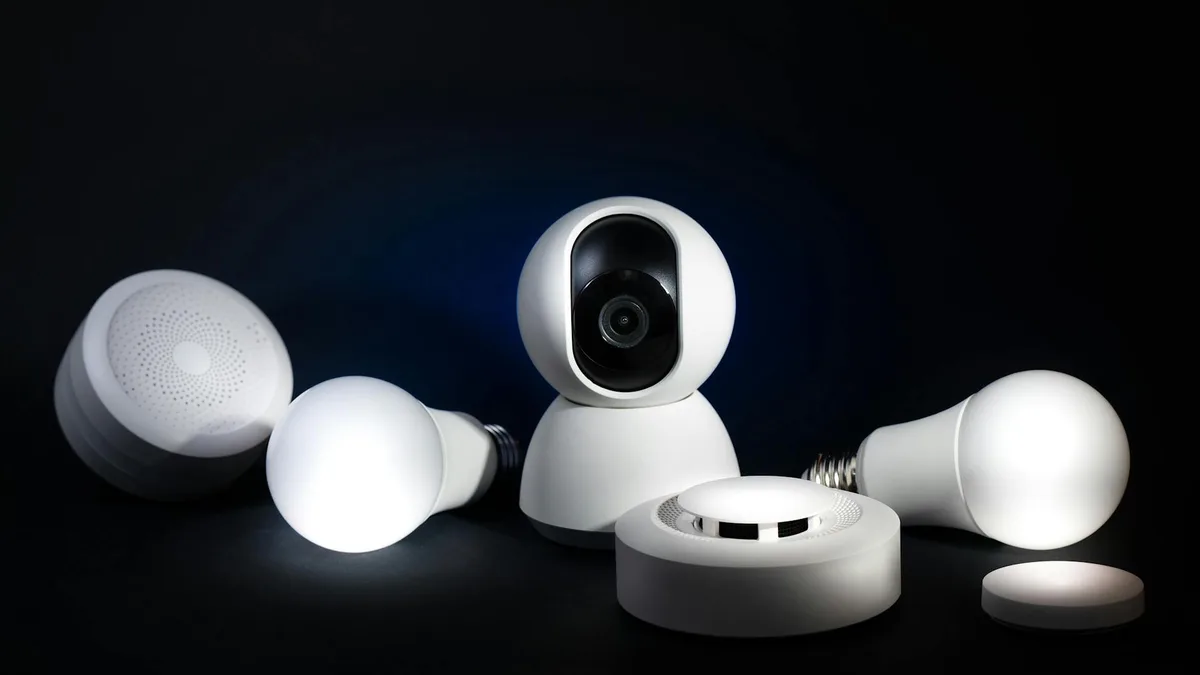
Thread is a low-power mesh networking protocol designed for battery-powered and always-on smart home devices. It is separate from Wi-Fi and Bluetooth. Many Matter 1.5 devices, particularly sensors, smart bulbs, and plugs, use Thread rather than Wi-Fi because Thread consumes dramatically less power and creates a self-healing mesh network.
How Thread Mesh Works
In a Thread network, devices are not simply connected to a single hub the way Wi-Fi devices connect to a router. Instead, Thread devices act as nodes that can route traffic for other Thread devices around them. If one device goes offline or is blocked by interference, the network automatically re-routes around it. This self-healing behavior means Thread networks become more reliable as you add more devices, not less.
Devices in a Thread network fall into three roles:
- Border Router: The bridge between your Thread mesh and your regular IP network (Wi-Fi/Ethernet). This is what your HomePod mini, Nest Hub, or compatible Echo provides. You need at least one. Two or three improves redundancy.
- Router: A mains-powered Thread device that can route traffic for other devices. Smart plugs, always-on sensors, and powered bulbs typically serve as routers, automatically strengthening the mesh as you add them.
- End Device: A battery-powered device that sends and receives its own data but does not route traffic for others. Door sensors, motion sensors, and soil sensors are typically End Devices to preserve battery life.
For a healthy Thread mesh, aim for at least three to five mains-powered Thread devices spread around the areas where you want coverage. A single Thread Border Router with no routing devices between it and a sensor in a detached garage is a recipe for connectivity problems. A smart plug in the garage and one in the hallway between the house and the garage creates the routing path the sensor needs.
Choosing Matter 1.5 Devices: What the Categories Cover
Matter 1.5's 41 device categories represent a significant expansion over the initial Matter 1.0 launch. Here is a practical summary of what is now in scope:
| Category | Matter 1.5 Support | Notes |
|---|---|---|
| Smart bulbs and lighting | Full support since Matter 1.0 | IKEA, Nanoleaf, Philips Hue, Sengled all certified |
| Smart plugs and outlets | Full support since Matter 1.0 | Energy monitoring included in 1.5 |
| Door locks | Full support since Matter 1.0 | Yale, Schlage, Level certified |
| Thermostats | Full support since Matter 1.0 | Ecobee, Amazon Smart Thermostat certified |
| Security cameras | Added in Matter 1.3, expanded in 1.5 | Live streaming across platforms now supported |
| Window coverings / blinds | Added in Matter 1.2 | IKEA Praktlysing and others certified |
| Garage door controllers | Added in Matter 1.2 | Meross, Tailwind certified controllers available |
| Soil / water sensors | Added in Matter 1.3 | Humidity, temperature, soil moisture |
| Energy management | Added in Matter 1.3, expanded in 1.5 | EV charger management, solar inverter integration |
| Robot vacuums | Added in Matter 1.2 | Basic start/stop/dock; deep features remain app-only |
One practical reality: "Matter certified" does not always mean full feature parity across platforms. A robot vacuum certified under Matter will start and stop via voice command on any platform, but its room-by-room scheduling, map editing, and mop-mode controls will still live in the manufacturer's app. Evaluate what you actually need from each device and verify those specific features work on your target platform before buying.
Step-by-Step: Setting Up Your First Matter Device
The Matter setup process is deliberately simple. The QR code on the device is the key mechanism. Here is the complete process:
Step 1: Ensure Your Controller Is Ready
Before adding any Matter device, confirm your controller hub is online and updated:
- Apple HomeKit: Open the Home app and verify your Home Hub (Apple TV 4K or HomePod) shows as connected. Update to the latest HomePodOS or tvOS if prompted.
- Google Home: Open the Google Home app, tap your Nest Hub or Nest WiFi Pro, and confirm it is online. Ensure the Google Home app on your phone is updated.
- Amazon Alexa: Open the Alexa app, go to Devices and confirm your Echo shows as online. Update the Alexa app to the latest version.
- Samsung SmartThings: Open the SmartThings app and confirm your Hub shows as connected with a green indicator.
Step 2: Locate the Matter QR Code
Every Matter device ships with a QR code. It is typically found in one of these locations:
- Printed on a label attached to the device itself
- Printed on the inner flap of the product packaging
- Printed on a separate card in the box
- Displayed on the device's own screen during first-time setup (for devices with displays)
The QR code contains a cryptographic commissioning code unique to that device. Protect it: anyone with this code can add your device to their own Matter network. Do not photograph it and post it publicly.
Step 3: Scan the QR Code in Your Platform App
The process is nearly identical across platforms:
- Open your platform app (Home, Google Home, Alexa, or SmartThings)
- Tap the "Add device" or "+" button
- Select "Matter" or "Add Matter device" when prompted
- Point your phone camera at the QR code on the device when the scanner appears
- The app will read the code and begin commissioning
During commissioning, the app transfers your Wi-Fi credentials (or Thread network credentials for Thread devices) securely to the device. This happens over Bluetooth Low Energy in most cases, which is why your phone needs Bluetooth enabled during setup even for a Wi-Fi device. The Bluetooth connection is used only for this initial credential transfer - after that, the device communicates via Wi-Fi or Thread.
Step 4: Name and Assign the Device
After commissioning, assign the device a clear, unambiguous name and place it in the correct room. Naming matters more than most guides acknowledge:
- Avoid names that sound similar to other devices ("bedroom lamp" vs. "bedroom light" creates voice command ambiguity)
- Use the room name as a prefix ("living room fan," "kitchen plug") for consistent voice command patterns
- Avoid special characters or numbers that voice assistants struggle to interpret ("light 3" works; "L-3" may not)
Step 5: Add the Same Device to Additional Platforms (Multi-Admin)
One of Matter's most important features is multi-admin: a single device can be registered with multiple platforms simultaneously. A Matter smart bulb can live in your Apple Home app, your Google Home, and your Alexa account at the same time, and each platform controls it independently.
To add a device to a second platform:
- Open the platform app where the device is already registered
- Navigate to the device's settings or detail page
- Find the option for "Share with other platforms," "Add to another app," or similar phrasing (varies by platform)
- The app will generate a new commissioning code or QR code
- Scan or enter that code in the second platform's app during its add-device flow
This does not require the original device QR code a second time. The platform that originally commissioned the device generates a delegation code for additional platforms. The device maintains its state across all platforms in sync.
Building a Matter Smart Home: Recommended Setup Order
The order in which you deploy devices matters for network reliability, especially with Thread. This sequence produces the most stable results:
Phase 1: Establish Your Thread Mesh
Deploy mains-powered Thread devices first, starting with the areas farthest from your Thread Border Router. Smart plugs are ideal for this role because they are inexpensive, always powered, and serve as Thread Routers automatically. Aim for coverage points every 10-15 meters throughout the home before adding battery-powered sensors.
After placing two to four smart plugs around the home, check Thread network status in your platform app. Apple's Home app shows Thread topology under Home Settings > Home Hubs & Bridges. Google Home shows Thread details under Home > Settings > Connected apps > Thread. Confirm the routing nodes are visible before proceeding.
Phase 2: Add Always-On Devices
Smart bulbs (especially in frequently used rooms), smart switches, thermostats, and door locks come next. These are typically mains-powered and also serve as Thread Routers where applicable. Getting these right first means your battery-powered sensors have a robust mesh to connect through.
Phase 3: Battery-Powered Sensors
Door sensors, motion sensors, temperature sensors, and soil sensors can now be added. With the mains-powered mesh established, these End Devices have routing options and will maintain stable connections even if one nearby router goes offline.
Phase 4: Complex Devices
Cameras, garage door controllers, and energy management systems often require additional app setup beyond the Matter commissioning flow. Add these after the mesh is stable. Camera Matter integration in particular requires the camera to be on the same local network segment as your Matter controller and may require firewall rules to allow multicast traffic between them.
Automations: Making Matter Work for You
Matter devices appear natively in each platform's automation system, so you can trigger them with the same rules engine you use for everything else. Common automation patterns that work well with Matter 1.5 device categories:
- Presence-based lighting: Motion sensor detects arrival in a room and turns on lights; no motion for 10 minutes triggers lights off. Works across all platforms.
- Lock on departure: Location-based trigger locks the front door when the last household member leaves. Supported natively in HomeKit and Google Home; Alexa requires Alexa Guard for location triggers.
- Energy management routines: Smart plugs with energy monitoring can trigger automations when a device reaches a power threshold (washing machine finishes, EV charging completes). Matter 1.5's energy cluster exposes this data cross-platform for the first time.
- Window covering schedules: Close blinds at sunset, open them at sunrise. Pair with a temperature sensor to close blinds automatically when the room exceeds a threshold in summer.
- Garden monitoring: Soil sensor below moisture threshold triggers a notification (or a smart valve). Matter 1.3's moisture sensor cluster makes this natively cross-platform.
Troubleshooting Common Setup Problems
Device Not Found During Commissioning
The most common cause is Bluetooth being disabled on the phone during setup. Matter commissioning uses Bluetooth LE for the initial handshake. Ensure Bluetooth is on, then try again. If the problem persists:
- Confirm the device is in commissioning mode (typically indicated by a flashing LED - consult the device manual for the specific pattern)
- Move the phone closer to the device during scanning
- Ensure the device is powered and has been reset to factory defaults if it was previously commissioned elsewhere
- Check that your platform app has Bluetooth and local network permissions granted in your phone's system settings
Device Commissions Successfully But Goes Offline
For Wi-Fi devices: verify that the device connected to the correct network (2.4GHz vs. 5GHz). Some devices only support 2.4GHz. If your router broadcasts a combined 2.4/5GHz SSID, the device may have connected to the 5GHz band it cannot use. Temporarily split the bands in your router settings during setup if this is suspected.
For Thread devices: this usually indicates insufficient mesh coverage between the device and the Border Router. Add a mains-powered Thread device between them and the End Device will automatically re-route through it.
Device Works on One Platform But Not Another
Multi-admin fabric issues are the typical cause. In the original platform app, navigate to the device settings and look for a "Linked apps" or "Fabrics" section. If the second platform appears there, remove it and re-add the device to the second platform using the delegation flow. If the second platform does not appear, the commissioning to that platform may not have completed - try the multi-admin add process again.
Slow Response or Latency
Matter over Thread responses for local commands should be under 200 milliseconds. Matter over Wi-Fi should be under 500 milliseconds. If responses are slower:
- Confirm the command is being processed locally, not routed through the cloud. Platform apps may fall back to cloud control if local network discovery fails. Check that your phone is on the same network as the devices and the hub.
- For Thread devices, check mesh coverage. A device routing through three hops instead of one will show measurable latency increase.
- Restart the Matter controller (HomePod, Nest Hub, Echo) if latency developed suddenly. Memory pressure on the controller after weeks of uptime can cause response degradation.
What to Expect From IKEA's Matter-over-Thread Ecosystem
IKEA's 20-plus Matter-over-Thread products deserve specific mention because they represent the most affordable entry point into a fully certified Thread mesh. The DIRIGERA hub (which IKEA updated for Matter compatibility in a 2024 firmware update) acts as a Thread Border Router and Matter controller simultaneously, and IKEA's entire current smart lighting line uses Thread as the transport layer.
For budget-conscious setups, starting with four to six IKEA TRADFRI smart bulbs and the DIRIGERA hub provides an instant Thread mesh across multiple rooms while also functioning as Matter devices that any additional platform can control. The per-bulb cost is substantially lower than Philips Hue while offering equivalent Thread networking behavior. The IKEA app remains required for firmware updates but the day-to-day control lives in whatever Matter platform you prefer.
Multi-Platform Strategy: When to Use Which App
Running multiple Matter platforms simultaneously is technically supported but creates practical complexity. A pragmatic approach for most households:
- Pick one platform as primary: This is where automations live, where you manage rooms and scenes, and where you troubleshoot device issues. Choose based on which voice assistant and phone platform you use most.
- Add platforms for voice assistants only: If you have both an iPhone and Android devices in the household, add secondary platforms purely for voice control. Alexa and Google Home work well as secondary voice platforms without hosting the automation logic.
- Keep automations on one platform: Cross-platform automation (a Google Home trigger firing an Apple HomeKit action) is not supported natively in Matter. Each platform's automation engine only sees and controls devices registered to it. If you need complex cross-device automations, consolidate on one platform for that logic.
Frequently Asked Questions
Do I need a hub for Matter devices?
For Matter over Wi-Fi devices controlled locally, you need a Matter controller but not necessarily a dedicated hub box. An Apple TV 4K, a 4th-gen Echo, or a Nest Hub all serve as Matter controllers. For Thread devices, you also need a Thread Border Router, which those same devices provide. If you only have a phone and no smart speaker or streaming device, you can commission Matter devices but they will require cloud routing when you are away from home.
Can I use Matter devices without internet?
Yes, for local control. Matter devices communicate over your local network. If your internet is down but your home network is working, you can control Matter devices from any phone or controller on the same network. Voice assistants (Alexa, Google Assistant, Siri) require cloud connectivity for natural language processing, so voice commands may not function during an outage, but app-based and automation-based control continues locally.
What happened to Apple's legacy HomeKit in February 2026?
Apple ended the legacy HomeKit accessory architecture, which required devices to authenticate against Apple servers for setup. Devices using the old protocol that require a Home Hub to function may experience connectivity issues on the latest HomePodOS or tvOS. New Matter device purchases are not affected. If you have older HomeKit accessories, check the manufacturer's support page for firmware updates that migrate them to Matter.
How many Matter devices can one network handle?
Matter does not specify a hard cap. Practical limits come from your router (most consumer routers handle 50-100 connected devices comfortably; Wi-Fi 6 routers handle larger counts better) and the Thread mesh capacity (a Thread network supports up to 254 devices per Border Router, with multiple Border Routers forming a single mesh). A realistic full smart home with 30-60 devices is well within normal router and Thread mesh limits.
Is Zigbee or Z-Wave dead now that Matter exists?
Not yet, but their trajectories are clear. Zigbee and Z-Wave have large installed device bases and mature ecosystems with certified devices that will continue working. But new device development is shifting rapidly toward Matter, especially for Wi-Fi and Thread categories. If you are starting from zero in 2026, Matter is the right foundation. If you have an existing Zigbee or Z-Wave setup, most major hubs (SmartThings, Home Assistant, Hubitat) support Matter alongside those protocols, so there is no reason to replace working hardware immediately.